
Placing & Paying for Your Order
To place an order with us, external (non UNC) labs will either need to obtain a purchase order, or have a valid credit card. All internal (UNC labs) can place an order by providing a Chartfield String.
Paying with a Credit Card:
 1. Create Your Virus Order
Start by following the prompts on the ordering form to create your custom or stock virus request. Here you will specify the details of your virus request such as virus type, end volume & use, as well as the construct name.
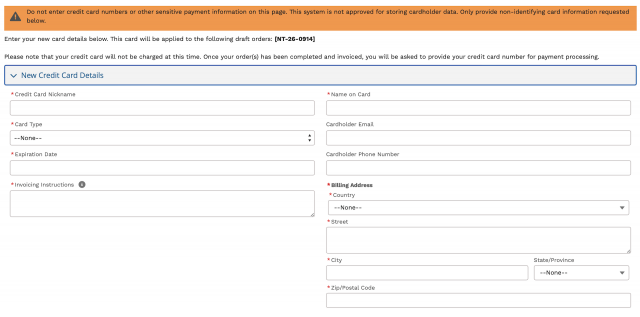 2. Enter Billing Informaiton
When checking out, select credit card as your payment method and follow the prompts, carefully completing all fields to verify you have a valid purchasing card to pay the final invoice. Please note that we do not store sensitive payment data, and you should never provide your credit card number on our ordering form. Be sure to provide the email address of the person who should revive and pay the invoice, even if it’s not the same as the requester.
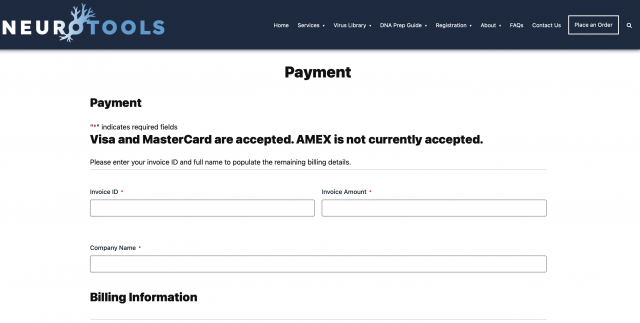 3. Pay your invoice
Once your order is ready to ship, the designated invoice recipient will receive a copy of the invoice, which will contain a link to our payment site. Please note that anyone with a valid purchasing card can pay the invoice on your behalf by using the payment link and verifying the billing details. Enter your Invoice ID and verify to the remaining fields to locate your invoice. After confirming your invoice details, you will be taken to a secure offsite payment page to provide your payment details. This is the only place you should ever type in secure information, including your credit card number.
Paying with a Purchase Order:
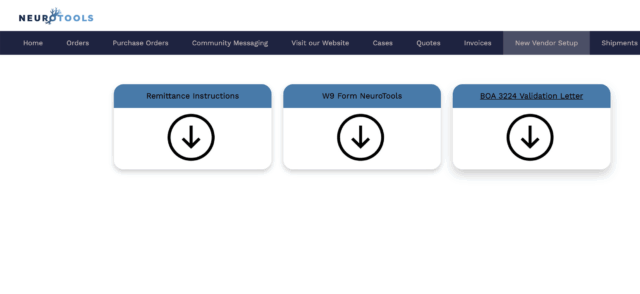 1.Vendor Setup
In order to obtain a purchase order, you’ll need to have UNC set up as a vendor in your institutions preferred purchasing software. To obtain the necessary documents for setup, please log in to your NeuroTools account, where you can download a copy of our W9 and remittance information.
 2. Get a Quote
After vendor setup is complete, you can log into your NeuroTools account to request a quote. You will need to submit this quote to your purchasing department to get a Purchase Order. To get your quote, indicate the desired quantity for each type of virus you intend to order, noting that the specifics of your custom virus order will be indicated in step 4.
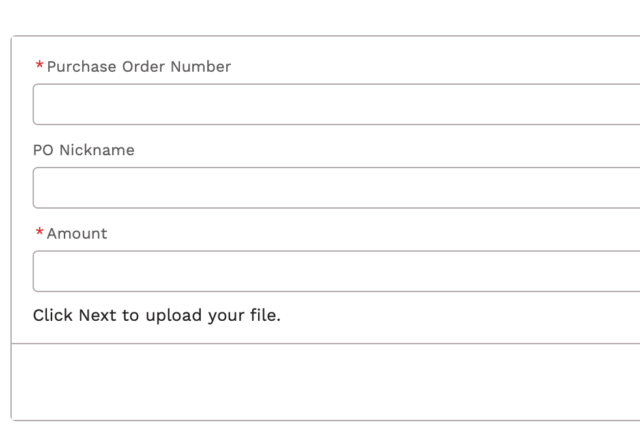 3. Submit Your Purchase Order
Once your purchasing department has generated the Purchase Order, you must upload the PDF file to your NeuroTools account. Your purchase Order will be reviewed, and either accepted our rejected by the NeuroTools team. To be accepted, the provided document must be an official copy of the Purchase Order and must meet the following guidelines:
- Payment terms of Net 30 or less
- Complete and accurate supplier information as specified by our remittance instruction
- Clear electronic invoice submission instructions
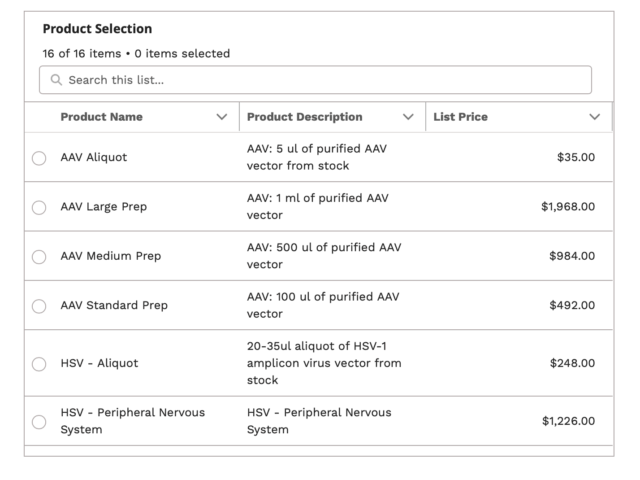 4. Place Your Virus Order
With an active Purchase Order in place, you can proceed with placing a virus order. Here you will specify the details of your virus request such as end volume & use, as well as the construct name. Be sure to select the relevant Purchase Order as your payment method. Once your purchase order is approved, your order will move into production. Please note that despite providing a PO in the previous step, no official order will exist until this step has been completed.
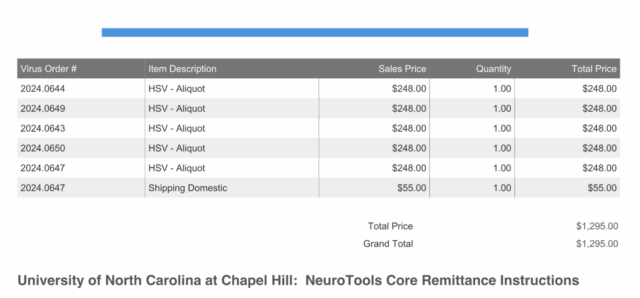 5. Pay Your Invoice
Once your order has been shipped, we will generate an invoice for payment. Your purchase order guarantees that payment for the invoice will be issued by your institution. Please note that you (the requester) are responsible for submitting your invoice for payment to your institution’s accounts payable team, payment software, or otherwise immediately upon receipt of the invoice in order to avoid payment delays. All payments are due within 30 days of the invoice date.
Paying with a Chartfield String
1. Create Your Virus Order
Start by following the prompts on the ordering form to create your custom or stock virus request. Here you will specify the details of your virus request such as virus type, end volume & use, as well as the construct name.
2. Provide your CFS
When checking out, select CFS as your payment method and follow the prompts, carefully completing all fields to verify you have a valid funding source to pay the final invoice. Once your order is picked up, you will be invoiced for your order, and the payment amount will be deducted from the funding source provided.